How My Journey Into Swift Started
I've always been a hardware person. Give me a microcontroller, some sensors, and a soldering iron, and I'm happy. But there's something about building apps that live in people's pockets that called to me. So I decided to learn Swift, and let me tell you—it was like learning a new language while simultaneously learning to think in a completely different way.
Coming from a robotics engineering background, I thought mobile development would be straightforward. You write code, it runs on a device, right? Wrong. Mobile development is a whole different beast. There's UI design, user experience, app lifecycle management, and this thing called "storyboards" that looks like visual programming but feels like controlled chaos.
This project—NutriScan—was my first real iOS app. It's a nutrition tracking app that uses OCR to scan food labels. Simple concept, but it taught me more about software engineering than any robotics project ever did.
The App Idea — NutriScan
The problem was simple: reading nutrition labels is annoying. The text is tiny, the format is inconsistent, and who has time to manually enter all that data? So I thought: what if you could just point your phone at a nutrition label and have it automatically extract the information?
That's how NutriScan was born. A Swift app that:
- Scans nutrition labels using OCR
- Extracts protein, fat, sugar, and calories
- Lets you manually enter data if scanning fails
- Shows beautiful statistics and charts
- Stores everything in CoreData
Simple idea, but the implementation? That's where the fun began.
Designing the UI
The Welcome Screen
I started with a welcome screen. Simple, right? Just a label and a button. But then I realized: Where should the button be? Top? Bottom? Center? What color should it be? Blue? Green? System blue? How big should the text be? 17pt? 20pt? 24pt?
I spent more time on that welcome screen than I care to admit. Turns out, UI design is about making decisions, and every decision feels important.
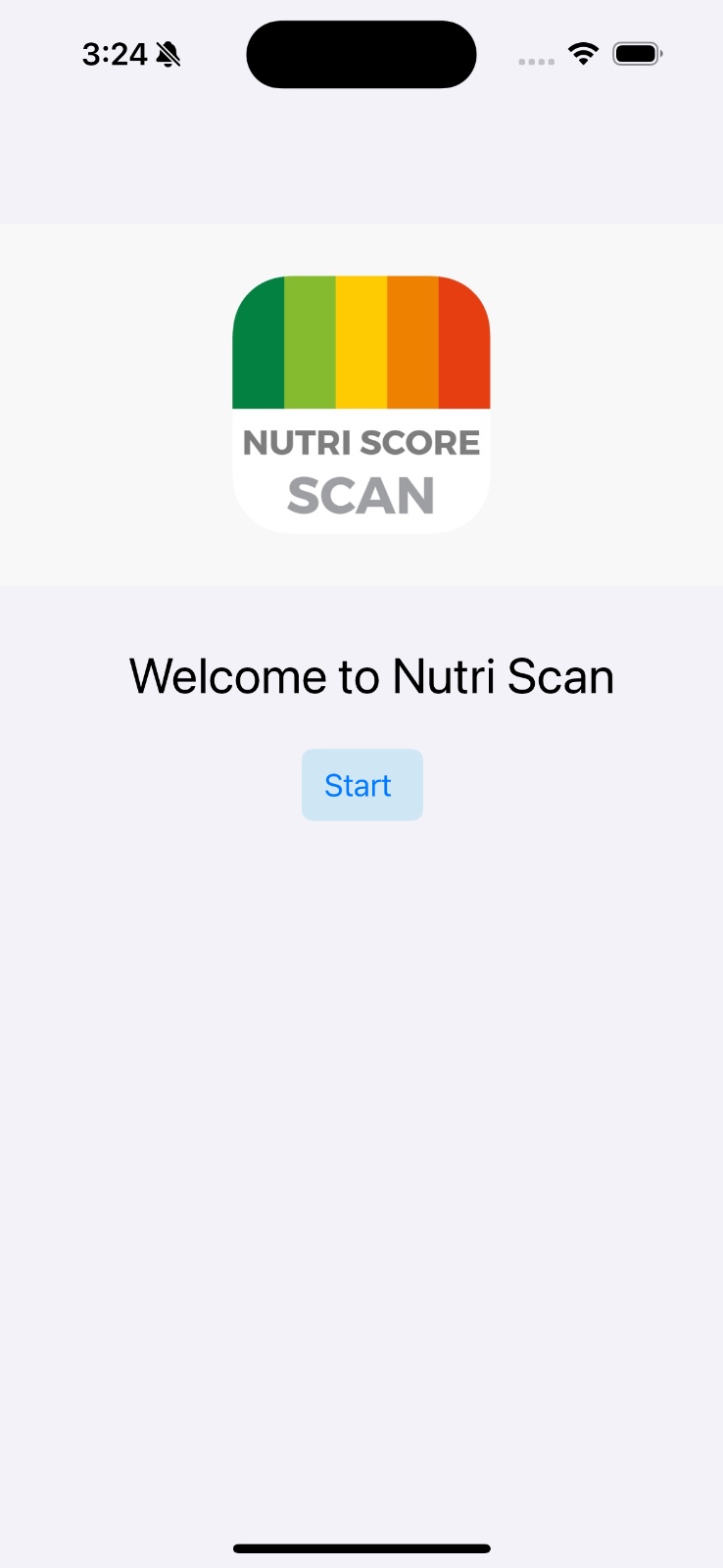
The final design is clean and simple—a welcome message and a "Start" button. Sometimes the simplest solution is the best solution.
The Navigation Flow
Storyboards are like visual programming, but more confusing. You drag views, connect segues, and suddenly you have a navigation flow. It's like building a flowchart, except the flowchart actually runs.

The flow is straightforward:
- Welcome screen → Start button
- Scan screen → Camera/Photo library
- Stats screen → View all your data
Simple, but getting the segues right took me longer than I'd like to admit. Storyboards taught me that visual programming is great until it isn't.
Building the App in Swift
UIKit Screens
UIKit is Apple's UI framework, and it's powerful. Every screen is a UIViewController, and every view is a UIView subclass. It's object-oriented UI design, and it makes sense once you get the hang of it.
ScanViewController (The Heart of the App)
This is where the magic happens. The scan view controller handles image selection from the photo library, OCR processing using Vision framework, nutrition data extraction, manual entry fallback, and CoreData storage.
Image Selection: The app uses UIImagePickerController to access the photo library. It's simple—just present the picker and handle the delegate callback when an image is selected.
OCR Processing: This is where it gets interesting. The Vision framework does the heavy lifting. I create a VNRecognizeTextRequest with accurate recognition level and language correction enabled. The framework handles image preprocessing, text detection, and character recognition—you just process the results.
The Vision framework is incredible. It takes an image and returns text observations. But here's the thing—OCR isn't perfect. Sometimes it reads "protein" as "prote1n" or "fat" as "f at". That's where the parsing logic comes in.
Nutrition Data Extraction: This was the hardest part. OCR gives you text, but extracting structured data from unstructured text? That's a whole different problem.
I used regular expressions to find nutrition values. The regex handles variations like "Protein: 10g", "protein 10 g", "PROTEIN 10", etc. It searches for keywords (protein, fat, sugar, calories) followed by numbers and units. It's not perfect, but it works for most nutrition labels.
Manual Entry: When OCR fails (and it will), users can manually enter data. I created an alert with four text fields for protein, fat, sugar, and calories. The validation ensures users enter valid numbers, and it saves directly to CoreData. It's a simple fallback, but it makes the app usable even when OCR fails.
StatsViewController (Data Visualization)
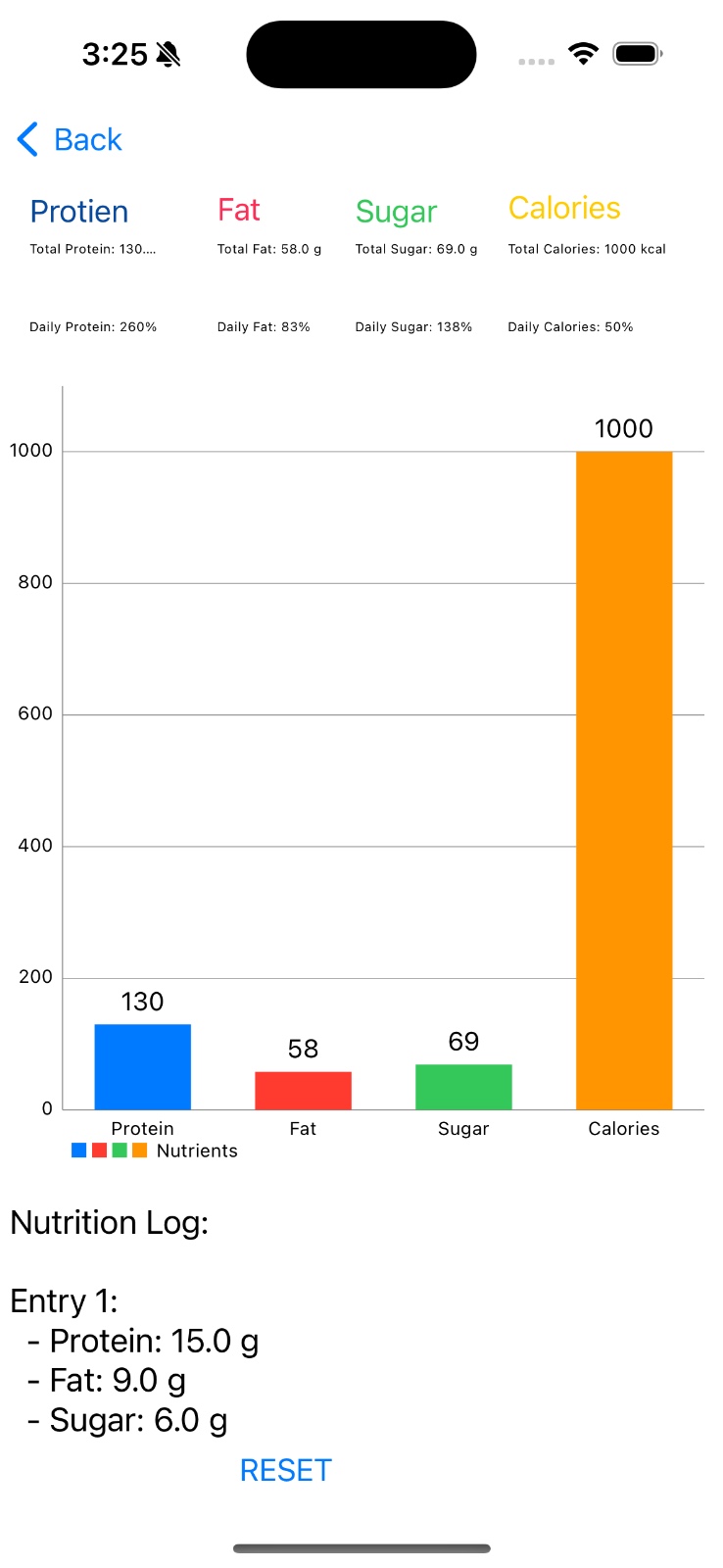
The stats screen shows aggregated data with beautiful charts. It uses DGCharts (a Swift port of MPAndroidChart) for visualization.
CoreData Fetching: CoreData is Apple's persistence framework, and it's powerful. I create a fetch request for NutritionEntry entities, execute it in the view context, and get all stored entries. You define entities in the CoreData model editor, and Xcode generates the classes. It's type-safe and integrates with Swift beautifully.
Bar Chart Visualization: The chart displays total protein, fat, sugar, and calories as colored bars. Each nutrient gets its own color (blue, red, green, orange) for easy distinction. The chart animates when data updates, which is satisfying to watch. It's the little things that make an app feel polished.
Navigation Flow
Navigation in iOS is handled by UINavigationController. It's a stack-based system—you push view controllers onto the stack, and they pop off when you go back. The flow is: Welcome → Push ScanViewController → Push StatsViewController → Pop back. It's elegant, and it handles the back button automatically.
CoreData Integration
CoreData is Apple's object graph and persistence framework. It's like a database, but more object-oriented. I defined a NutritionEntry entity with properties for timestamp, protein, fat, sugar, and calories. When saving data, I create a new entry in the managed object context, set the properties, and call context.save(). Simple, but powerful. CoreData handles relationships, migrations, and all the database complexity.
Vision/OCR Pipeline
The Vision framework is Apple's computer vision framework. It's built on Core ML and provides high-level APIs for common vision tasks. I create a text recognition request that processes the image and returns text observations. The framework handles the hard parts—image preprocessing, text detection, character recognition. You just process the results.
Challenges: OCR isn't perfect. It struggles with poor lighting, blurry images, unusual fonts, and text at angles. But for nutrition labels (which are usually well-formatted), it works surprisingly well.
Chart Rendering Logic
DGCharts is a powerful charting library. I configure the x-axis with labels for each nutrient, set the y-axis minimum to zero, and enable smooth animations. The chart animates when data updates, which makes the app feel responsive and polished.
My Favorite Features
Manual Entry Popup
When OCR fails, users can manually enter data. It's a simple alert with four text fields, but it makes the app usable even when scanning doesn't work.
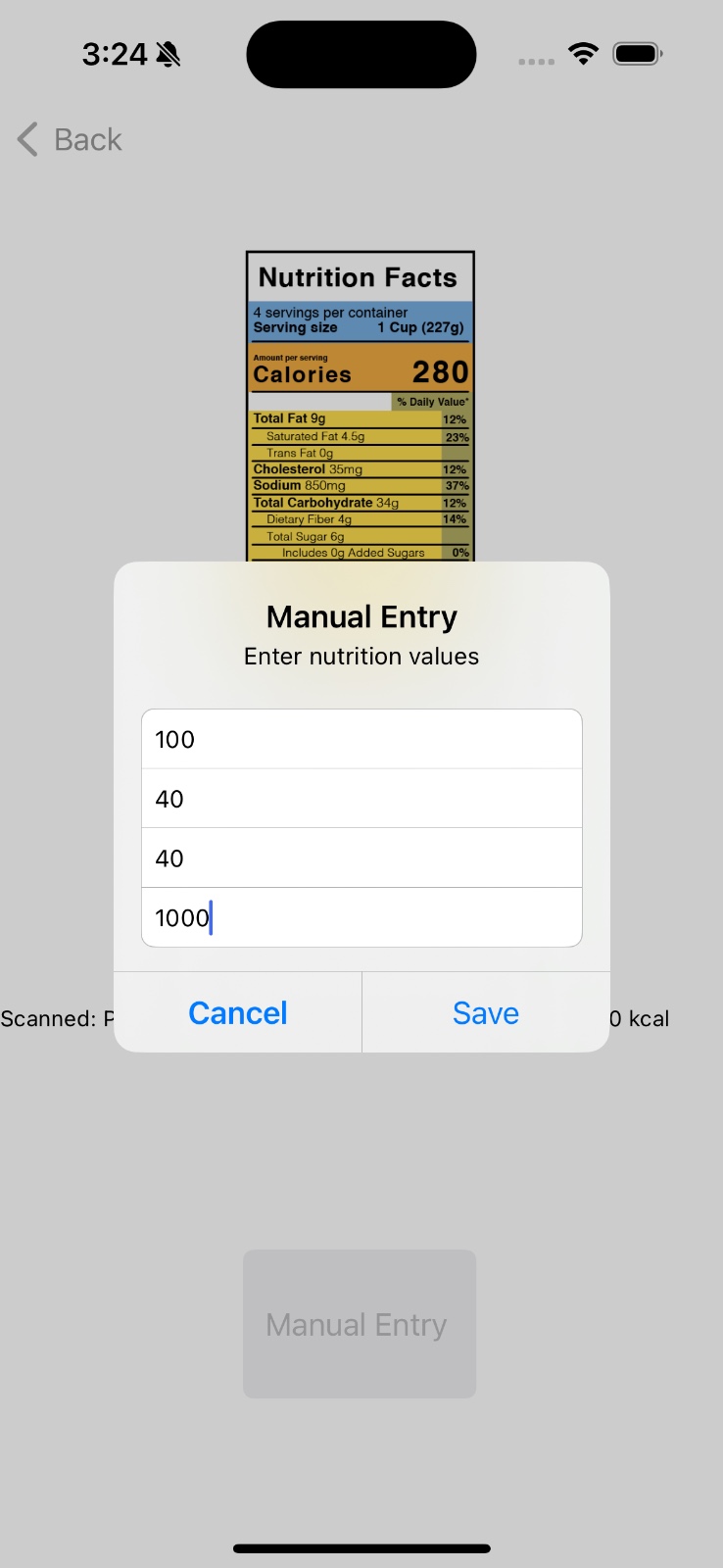
The validation ensures users enter valid numbers, and the UI provides clear feedback.
Bar Graph Updates
The bar chart updates in real-time as you add entries. It animates smoothly, and the colors make it easy to distinguish between nutrients. The chart shows total protein, fat, sugar, and calories, daily percentages based on recommended values, and visual comparison between nutrients. It's satisfying to watch the chart grow as you track your nutrition.
Clean Navigation
The navigation flow is simple and intuitive: Welcome → Scan → Stats. The back button works automatically, and there are no confusing menus or hidden features. Sometimes the best UX is the simplest UX.
Debugging — The Emotional Rollercoaster
Debugging Swift made me emotionally stronger. Here are some of my favorite debugging stories:
The Case of the Missing CoreData
I spent hours wondering why my data wasn't saving. The code looked right, the context was correct, but nothing was persisting. Turns out, I forgot to call context.save(). CoreData requires an explicit save call, and I was creating entries but never saving them. It's like writing a letter but never mailing it.
Lesson: Always save your CoreData context. It's not automatic.
The OCR That Returned Nothing
My OCR was returning empty results, and I couldn't figure out why. The image was clear, the text was readable, but Vision framework saw nothing. The issue? I was using the photo library but the image picker wasn't requesting photo library permissions. iOS requires explicit permission requests, and I forgot to add the privacy description to Info.plist.
Lesson: iOS permissions are explicit. Always check Info.plist for required privacy descriptions.
The Chart That Wouldn't Update
My bar chart wasn't updating when new data was added. The data was correct, the chart configuration looked right, but nothing changed. The problem? I was updating the chart data but not calling notifyDataSetChanged(). Charts need to be notified when data changes, and I was forgetting that step.
Lesson: Charts are lazy. You have to tell them when data changes.
The Segue That Went Nowhere
I created a segue in the storyboard, connected it to a button, but nothing happened when I tapped it. The issue? I forgot to give the segue an identifier. Storyboards need identifiers to programmatically trigger segues, and I was relying on automatic segues that didn't exist.
Lesson: Storyboards are powerful, but they require explicit configuration.
What I Learned as a Mobile App Developer
Mobile Development is Different
Coming from a robotics engineering background, mobile development felt foreign. There's no main loop, no direct hardware access, and everything is event-driven. But once you understand the patterns, it clicks.
UI Design Matters
In robotics projects, UI is often an afterthought. In mobile apps, UI is the product. Every pixel matters, every interaction counts, and bad UI makes a good app feel broken.
Frameworks are Your Friends
Swift has incredible frameworks: UIKit for UI components, Vision for computer vision, CoreData for persistence, and DGCharts for data visualization. Learning to use frameworks effectively is as important as writing code.
Testing is Harder Than It Looks
Testing mobile apps is different from testing robotics systems. You can't just print debug statements—you need simulators, device testing, and UI testing. But good testing makes all the difference.
User Experience is Everything
A technically perfect app that's hard to use is a bad app. User experience matters more than technical perfection. Sometimes the simplest solution is the best solution.
Future Roadmap
This is just the beginning. I'd like to add barcode scanning to look up nutrition data from databases—faster and more accurate than OCR. Connecting to food databases like USDA FoodData Central would provide comprehensive nutrition information. User profiles would let users set custom daily targets based on their goals, since not everyone needs 2000 calories per day.
Training a custom Vision model specifically for nutrition labels would improve accuracy over general OCR. Cloud sync using iCloud or Firebase would let nutrition data follow users across devices. Meal planning features could suggest meals based on nutrition goals, and social features would let users share progress with friends for accountability. Export functionality would enable CSV or PDF export for data portability.
Each feature builds on the fundamentals. Understanding UIKit, CoreData, and Vision is the foundation for everything else.
Conclusion
Building NutriScan taught me that mobile development is a different kind of engineering. It's not just about code—it's about user experience, design, and making things that people actually want to use.
From OCR processing to CoreData persistence to chart visualization, this app taught me the fundamentals of iOS development. But more importantly, it taught me that building apps is about solving problems, and sometimes the simplest solution is the best solution.
And remember: when your CoreData isn't saving, check if you called context.save(). Trust me on this one.
"Debugging Swift made me emotionally stronger." – Every iOS developer, eventually.